WooCommerce Plugin
Accept 40+ payment methods on your WooCommerce store with zero coding. Official Omise plugin with full payment method support.
Overview
The Omise Payment Gateway plugin enables WooCommerce stores to accept credit cards, mobile banking, e-wallets, QR payments, and buy-now-pay-later services across Southeast Asia.
Key Features:
- ✅ 40+ payment methods - Cards, wallets, QR, mobile banking, BNPL
- ✅ Zero coding required - Install and configure via WordPress admin
- ✅ 3D Secure support - Enhanced security for card payments
- ✅ Secure payment form - PCI-compliant tokenization
- ✅ Multi-currency - THB, SGD, MYR, JPY support
- ✅ Automatic updates - Via WordPress Plugin Directory
Supported Versions
| Software | Supported Versions |
|---|---|
| WooCommerce | 3.3.4 - 7.0.0 |
| WordPress | 4.3.1+ (tested up to 6.8.1) |
| PHP | 7.2+ (PHP 8.2+ supported as of v5.9.0) |
Do NOT use plugin versions below 4.8 - they have known security vulnerabilities. Always use the latest version.
Installation
Method 1: WordPress Plugin Directory (Recommended)
- Log in to WordPress admin
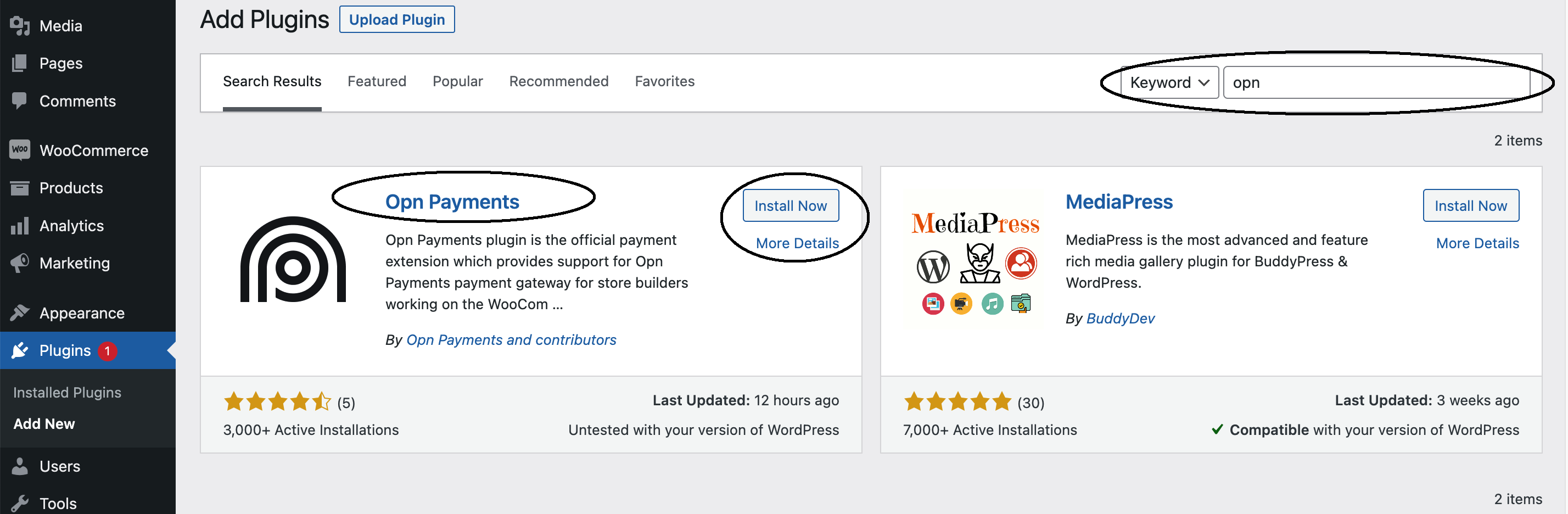
- Navigate to Plugins → Add New
- Search for "Omise"
- Click "Install Now" on "Omise Payment Gateway"
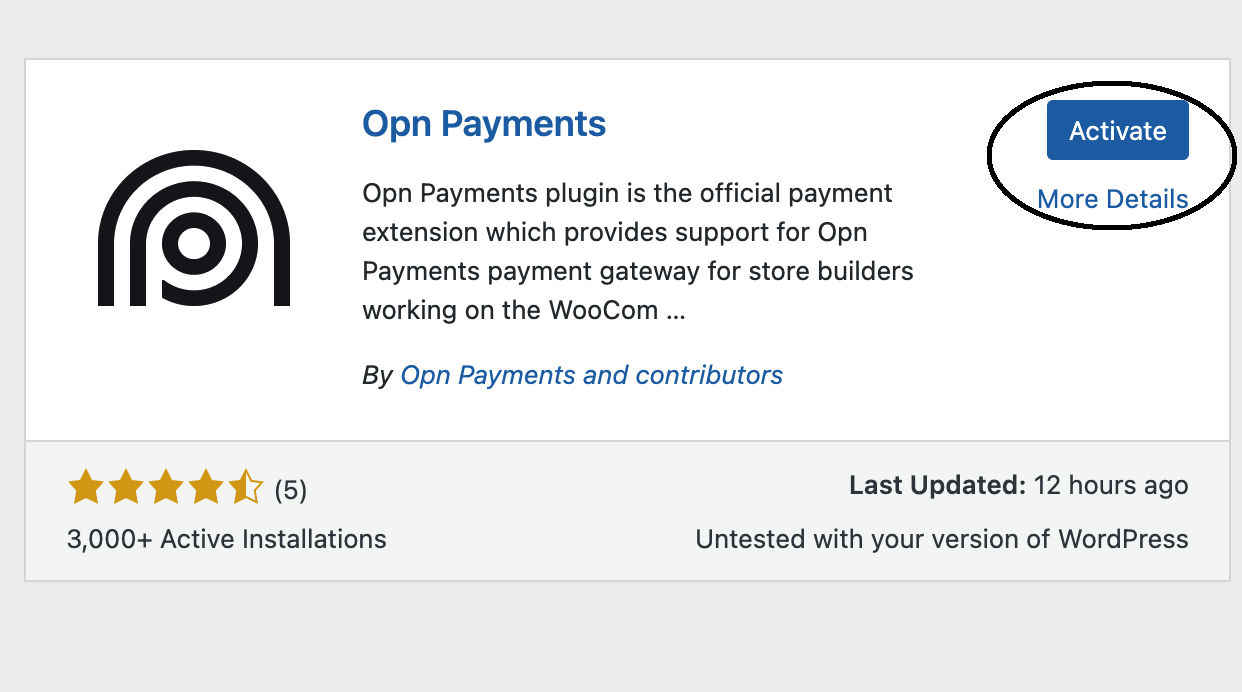
- Click "Activate"
Method 2: Manual Installation
- Download latest release from WordPress.org
- Go to Plugins → Add New → Upload Plugin
- Choose downloaded ZIP file
- Click "Install Now"
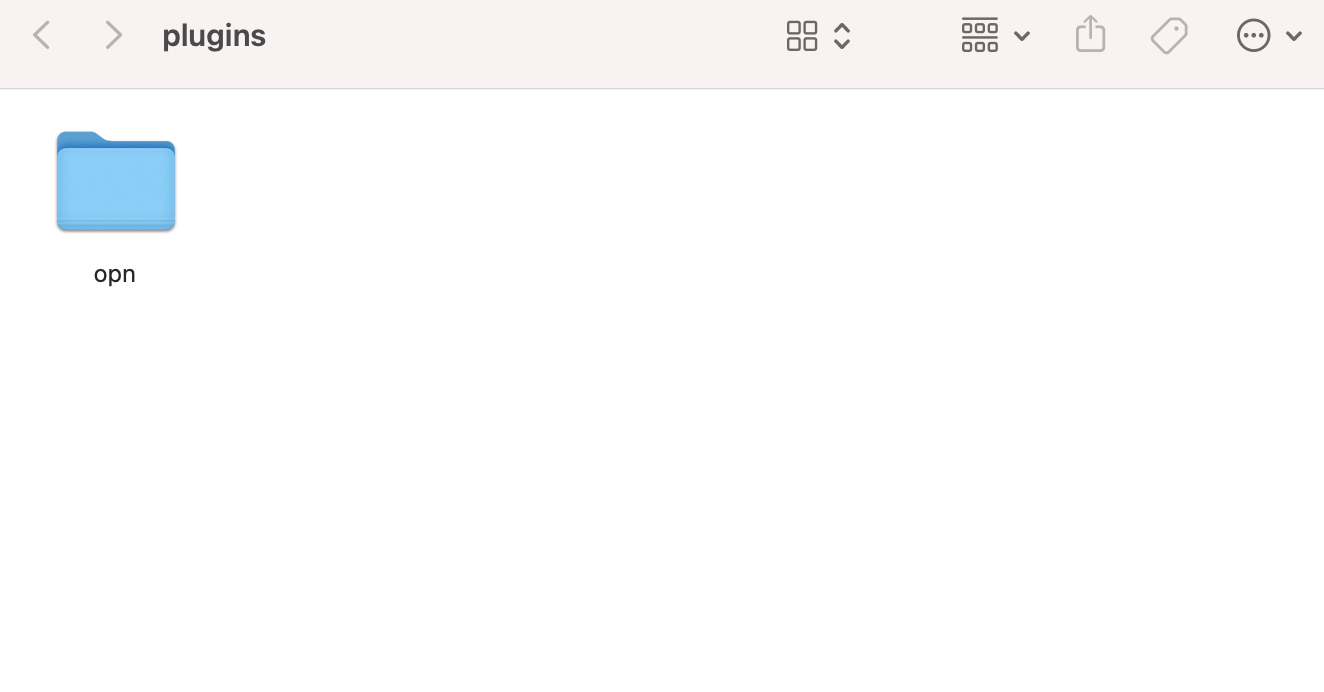
- Extract and rename the folder to "Omise"
- Click "Activate Plugin"

Method 3: GitHub (Developers)
cd /path/to/wordpress/wp-content/plugins/
git clone https://github.com/omise/omise-woocommerce.git
cd omise-woocommerce
composer install
Then activate via WordPress admin.
Configuration
Step 1: Get Your API Keys
- Log in to Omise Dashboard
- Navigate to Settings → API Keys
- Copy your Public Key and Secret Key
- Test Mode: Use
pkey_test_...andskey_test_...for testing - Live Mode: Use
pkey_...andskey_...for real transactions
Step 2: Configure Plugin
- Go to WooCommerce → Settings → Payments
- Click "Omise" or "Manage"
- Enter your API keys:
Public Key: pkey_test_YOUR_PUBLIC_KEY
Secret Key: skey_test_YOUR_SECRET_KEY
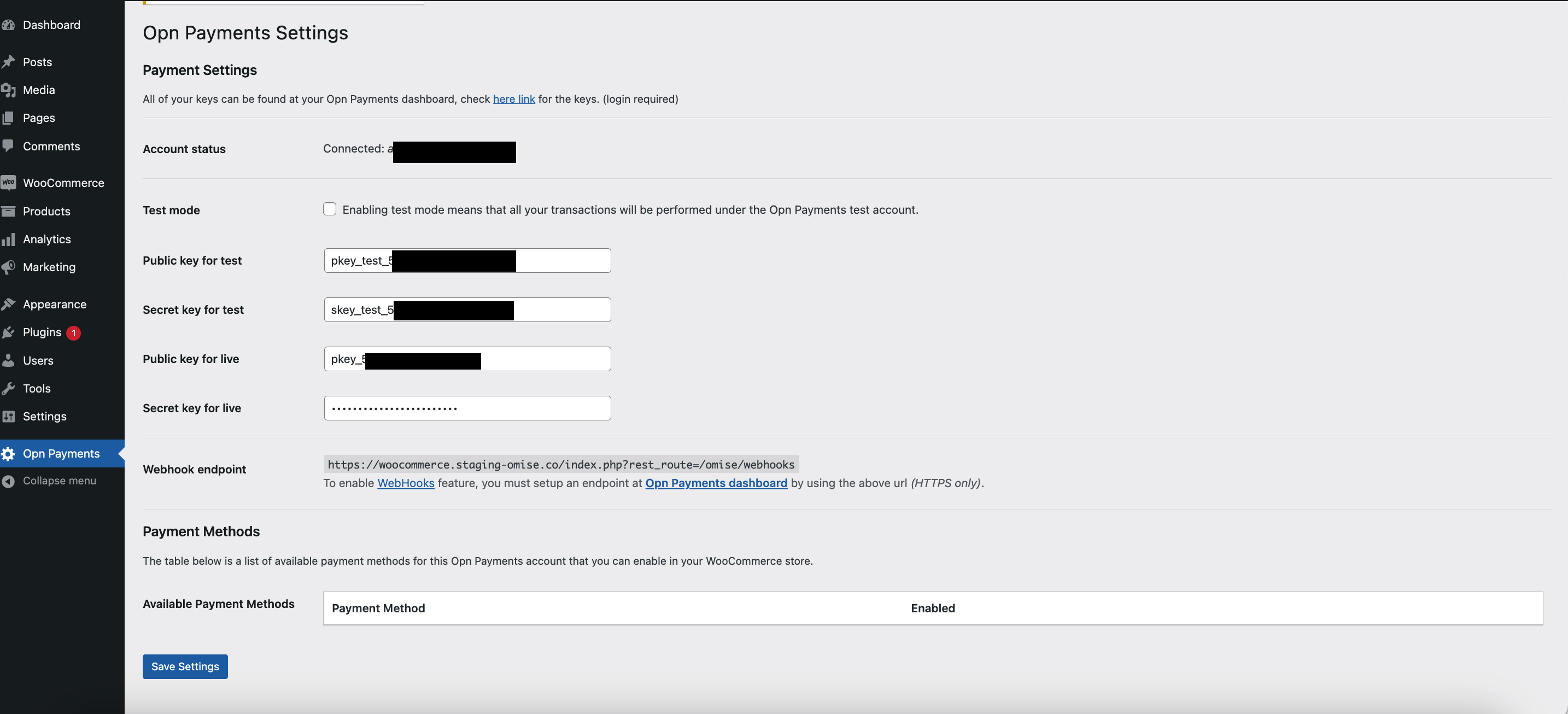
- Check "Enable Test Mode" for testing
- Click "Save changes"
Step 3: Enable Payment Methods
The plugin automatically displays available payment methods based on your Omise account country.
- Go to WooCommerce → Settings → Payments
- You'll see all available payment methods:
- Credit / Debit Card
- PromptPay
- TrueMoney
- Mobile Banking (multiple banks)
- Internet Banking
- Installments
- Alipay+ wallets
- And more...
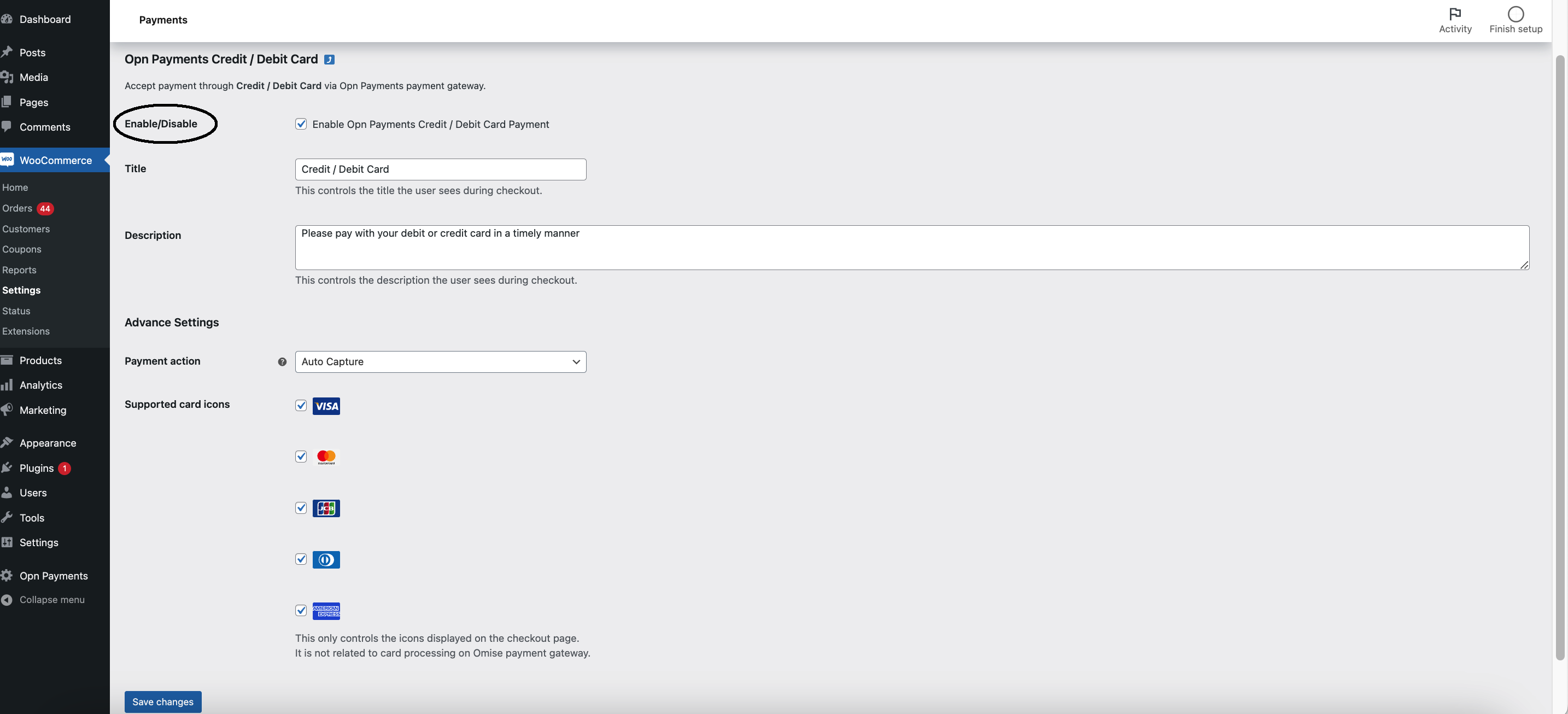
- Click "Config" on each method you want to enable
- Check "Enable/Disable" field
- Configure method-specific settings
- Click "Save changes"
Available Payment Methods
By Region
Thailand:
- Credit/Debit Cards
- PromptPay
- TrueMoney Wallet
- TrueMoney QR
- Rabbit LINE Pay
- ShopeePay
- Mobile Banking (Bangkok Bank, KBank, SCB, KTB, Krungsri)
- Internet Banking (deprecated)
- Installments (8 banks)
- Alipay, WeChat Pay, Boost, GrabPay
Singapore:
- Credit/Debit Cards
- PayNow
- GrabPay
- OCBC Digital
- Alipay+ wallets
- Apple Pay, Google Pay
Malaysia:
- Credit/Debit Cards
- FPX (19 banks)
- DuitNow
- GrabPay
- Touch 'n Go
- ShopeePay
- Boost
Japan:
- Credit/Debit Cards
- Konbini (convenience store)
- Pay-easy
- PayPay
Available methods depend on your Omise account's registered country. Contact support@omise.co to request additional payment methods.
Advanced Features
3D Secure Configuration
3D Secure adds extra authentication for card payments to reduce fraud.
To Enable:
- Contact Omise support: support@omise.co
- Request 3D Secure activation for your account
- Plugin automatically supports both 3DS and non-3DS charges
How It Works:
- Customer enters card details
- Redirected to bank for authentication
- Returns to your site after verification
- Order processed based on auth result
Secure Payment Form
The secure form provides enhanced security with customizable themes.
To Enable:
- Go to WooCommerce → Settings → Payments
- Click "Config" on Credit/Debit Card
- Scroll to "Advanced Settings"
- Set "Secure form" to "Yes"
- Choose theme: Light or Dark
- Click "Save changes"
Form Customization:
You can customize the payment form appearance by clicking the customization link:
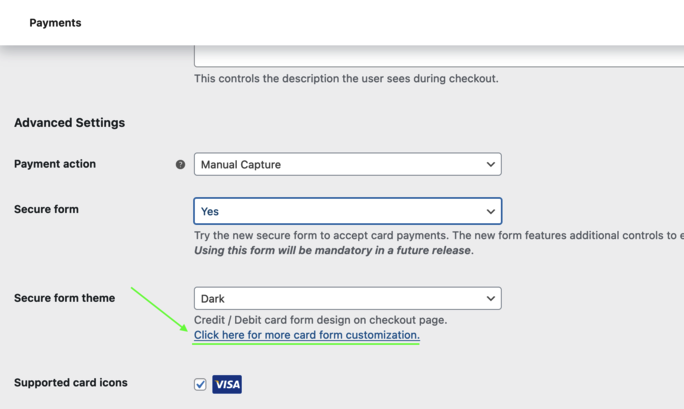
This opens the form customization interface where you can adjust colors, styling, and appearance:
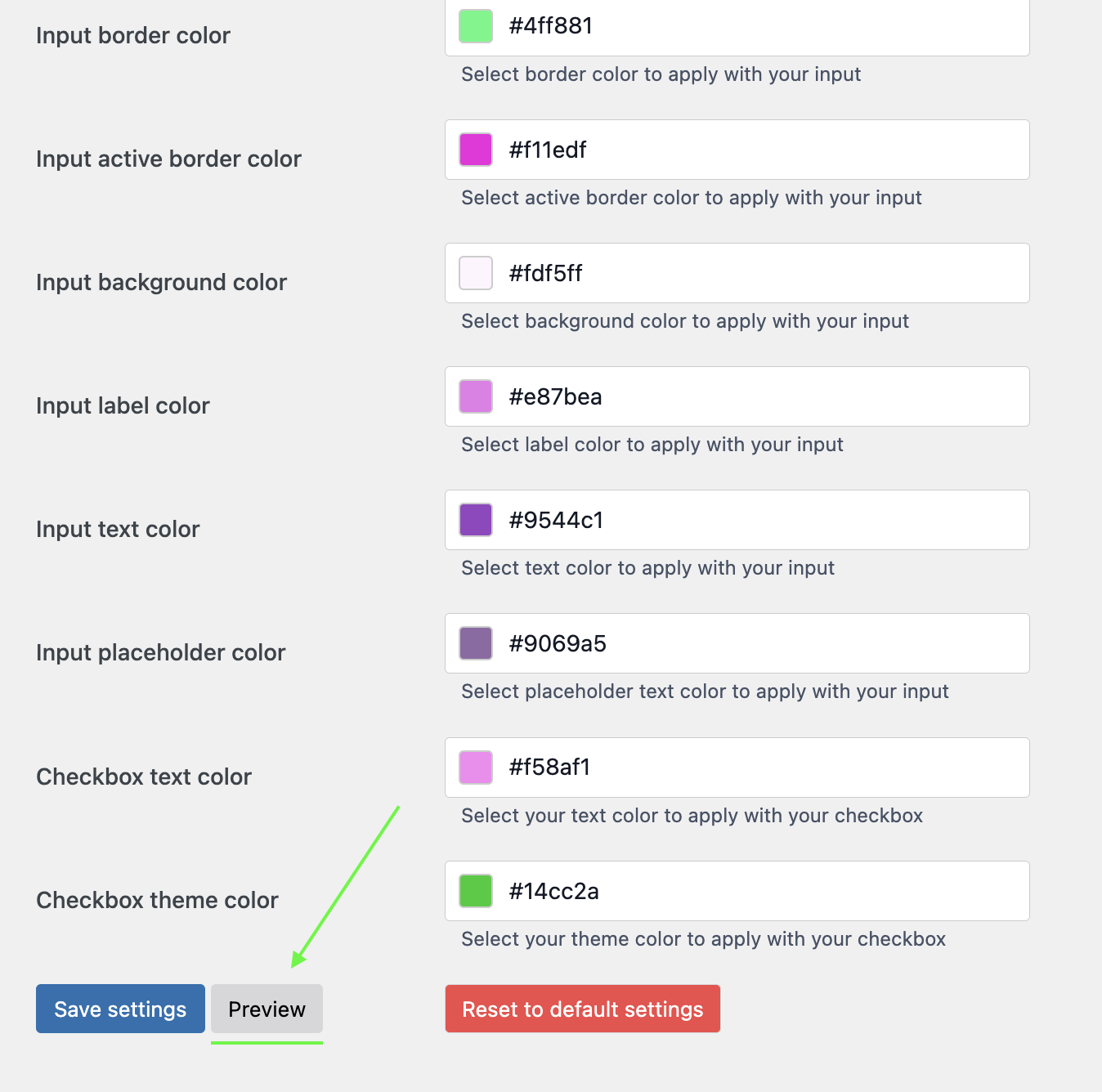
Preview your customized payment form before going live:
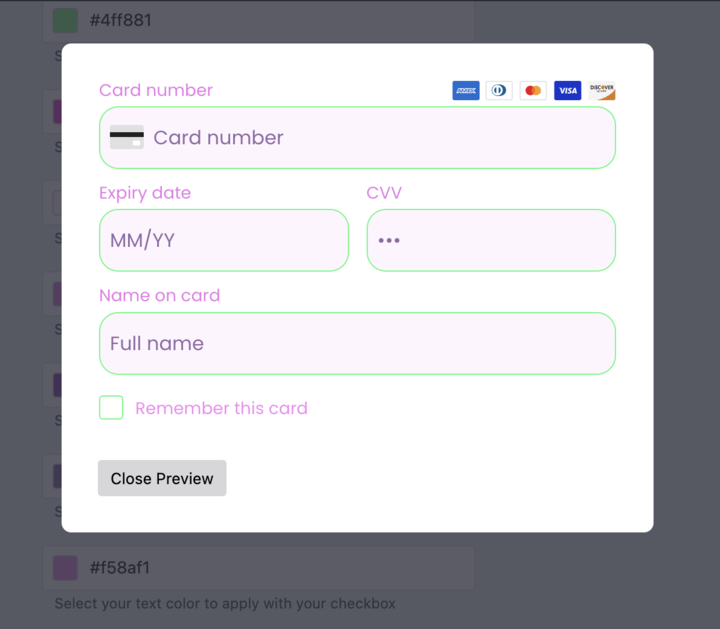
Customizations made to the earlier card payment form are NOT retained when enabling the secure form. You must redo any customizations.
Manual vs Automatic Capture
Automatic Capture (Default):
- Charge processed immediately on order completion
- Customer charged right away
Manual Capture:
- Only authorizes payment (holds funds)
- You manually capture later via dashboard
- Useful for made-to-order items
To Enable Manual Capture:
- Edit payment method settings
- Check "Manual Capture"
- Save changes
Required for:
- TrueMoney Wallet
- Installment Payments
Webhook Configuration
Webhooks provide real-time payment notifications.
- Go to Omise → Settings
- Copy the Webhook URL shown
- Log in to Omise Dashboard
- Go to Settings → Webhooks
- Add your site's webhook URL
- Select events or choose "All events"
- Save
Events to Enable:
charge.completecharge.failedrefund.create
Testing
Enable Test Mode
- WooCommerce → Settings → Payments → Omise
- Check "Enable Test Mode"
- Enter test API keys
- Save changes
Test Cards
| Card Number | Result |
|---|---|
| 4242 4242 4242 4242 | Success |
| 4000 0000 0000 0002 | Decline |
Use any future expiration date and any CVV.
Test Alternative Payment Methods
For QR and e-wallet methods:
- Place test order
- Complete checkout
- Use Omise Dashboard "Actions" button
- Mark test charge as successful or failed
Testing Checklist
- Test card payment success
- Test card payment decline
- Test 3D Secure (if enabled)
- Test alternative payment methods
- Test refunds
- Test manual capture (if enabled)
- Verify order status updates
- Test webhook notifications
- Check email confirmations
- Test mobile checkout
Refunds
Process Refunds
- Go to WooCommerce → Orders
- Open the order
- Click "Refund"
- Enter refund amount
- Check "Refund via Omise"
- Click "Refund"
Supported:
- Full refunds
- Partial refunds (for supported methods)
- Automatic inventory restocking
Limitations:
- Some payment methods don't support refunds (e.g., PromptPay)
- Check individual method documentation
Troubleshooting
Issue: Payment Methods Not Showing
Causes:
- Omise plugin not activated
- API keys not configured
- Payment method not available for your country
- WooCommerce not properly installed
Solution:
- Verify plugin is active
- Check API keys are entered correctly
- Ensure test mode setting matches your keys
- Contact support for method availability
Issue: 3D Secure Error
Error: "3d secure is requested, but return URI is not set"
Solution:
- Enable 3D Secure on the plugin FIRST
- Then contact support to enable on your account
- The plugin automatically handles return URIs
Issue: Payments Not Processing
Checklist:
- Correct API keys entered
- Test/live mode matches keys
- PHP version 7.2 or higher
- WooCommerce 3.3.4 or higher
- Plugin version 4.8 or higher
- HTTPS enabled on checkout pages
- No JavaScript errors in browser console
Issue: Webhook Not Working
Solution:
- Check webhook URL is correct in Omise dashboard
- Ensure site is publicly accessible (not localhost)
- Verify SSL certificate is valid
- Check webhook logs in Omise dashboard
- Test webhook delivery manually
Issue: Orders Stuck in "Pending"
Causes:
- Webhook not configured
- Customer didn't complete payment
- Payment gateway timeout
Solution:
- Configure webhooks properly
- Check Omise dashboard for charge status
- Manually update order status if needed
Best Practices
1. Always Use Latest Version
# Check for updates regularly
wp plugin update omise-woocommerce
2. Test Before Going Live
- Complete full checkout in test mode
- Test all enabled payment methods
- Verify order status updates
- Check email notifications
3. Monitor Failed Payments
- WooCommerce → Orders
- Filter by "Failed" status
- Contact customers if needed
- Analyze failure patterns
4. Configure Proper Email Notifications
- WooCommerce → Settings → Emails
- Customize email templates
- Test email delivery
- Set up proper SMTP (not PHP mail)
5. Enable Logging for Debugging
- WooCommerce → Status → Logs
- Select "omise" log file
- Review for errors during troubleshooting
6. Keep Backups
# Backup before updates
wp db export
wp plugin list --format=json > plugins-backup.json
7. Use Staging Environment
Test updates on staging before production:
- Clone site to staging
- Update plugin
- Test thoroughly
- Deploy to production
FAQ
Is the plugin free?
Yes, the Omise WooCommerce plugin is completely free. You only pay transaction fees on processed payments.
Can I accept international cards?
Yes, Omise supports international credit and debit cards (Visa, Mastercard, JCB, Amex). Enable multi-currency if available for your account.
Do I need PCI compliance?
The plugin handles card data securely via tokenization. You typically only need SAQ A compliance (simplest form). Consult your security team for specifics.
Can I use multiple payment methods?
Yes! Enable as many payment methods as you want. Customers choose at checkout.
How do transaction fees work?
Omise charges per-transaction fees:
- Cards & Installments: 3.65%
- PromptPay: 1.65%
- Other methods: Varies
Check your Omise dashboard for specific rates.
Can I customize the payment form?
The secure form has limited customization (light/dark theme). For full control, use the standard integration (allows CSS customization).
Support & Resources
Getting Help
Plugin Support:
- Email: support@omise.co
- Subject line: "Support Request: WooCommerce"
- Include: Plugin version, WooCommerce version, error messages
Community:
Documentation
System Requirements
WordPress: 5.0 or higher
WooCommerce: 3.3.4 - 7.0.0+
PHP: 7.2 or higher
SSL: HTTPS required for checkout
Related Resources
- Shopify Plugin - Shopify integration
- Payment Links - No website needed
- Dashboard Guide - Manual operations
- Testing - Test payment scenarios
- Going Live - Launch checklist