PrestaShop Plugin
Accept payments on your PrestaShop store with Omise. Support for all major payment methods with easy installation from the PrestaShop marketplace.
Overview
- PrestaShop 1.6.1.19 - 1.6.1.23 support
- Marketplace or manual installation
- All Omise payment methods
- Multi-currency support
- Automatic refunds
- Mobile-optimized
Installation
From PrestaShop Marketplace
- Log in to PrestaShop admin
- Navigate to Modules → Module Manager
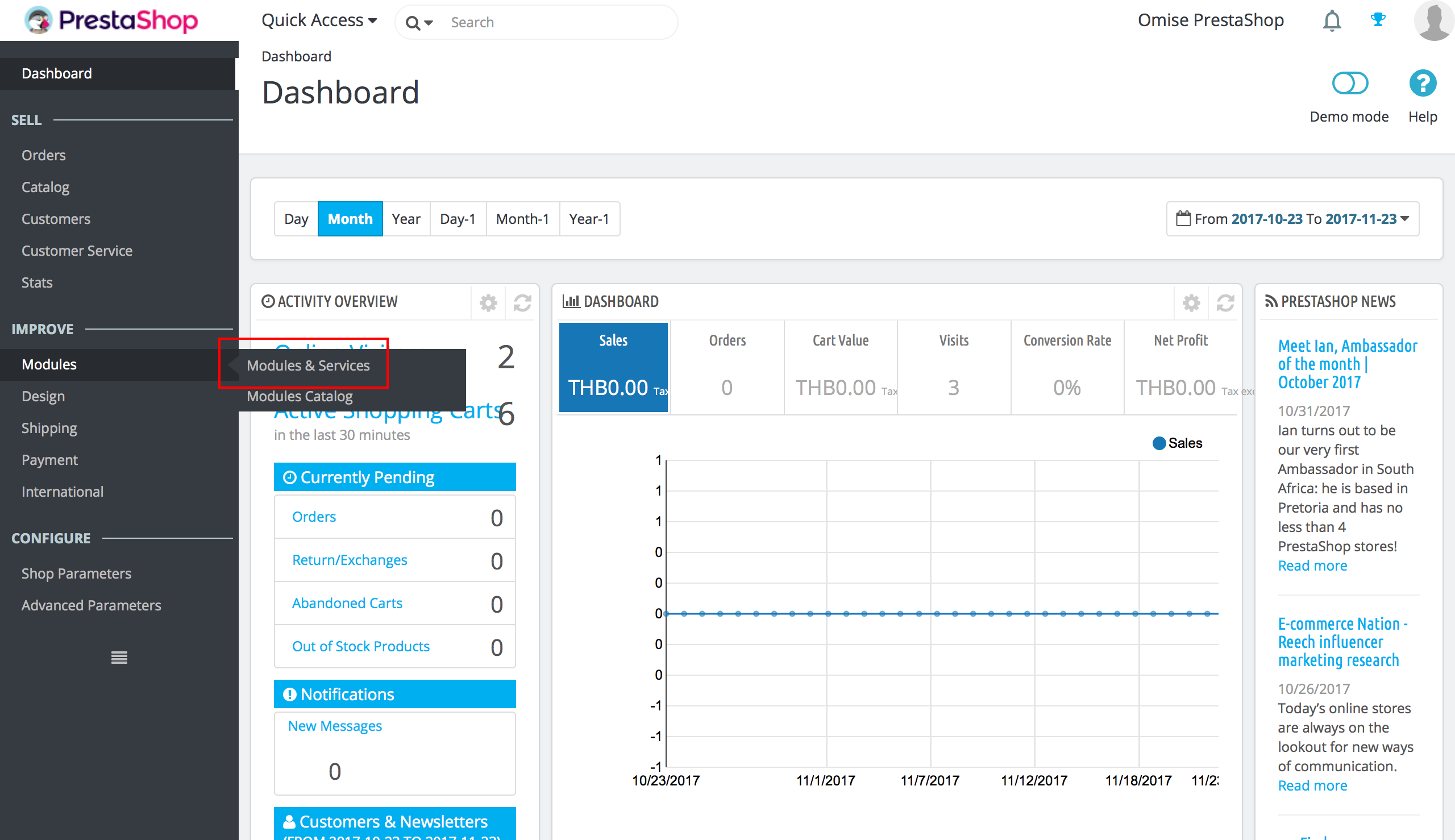
- Search for "Omise"
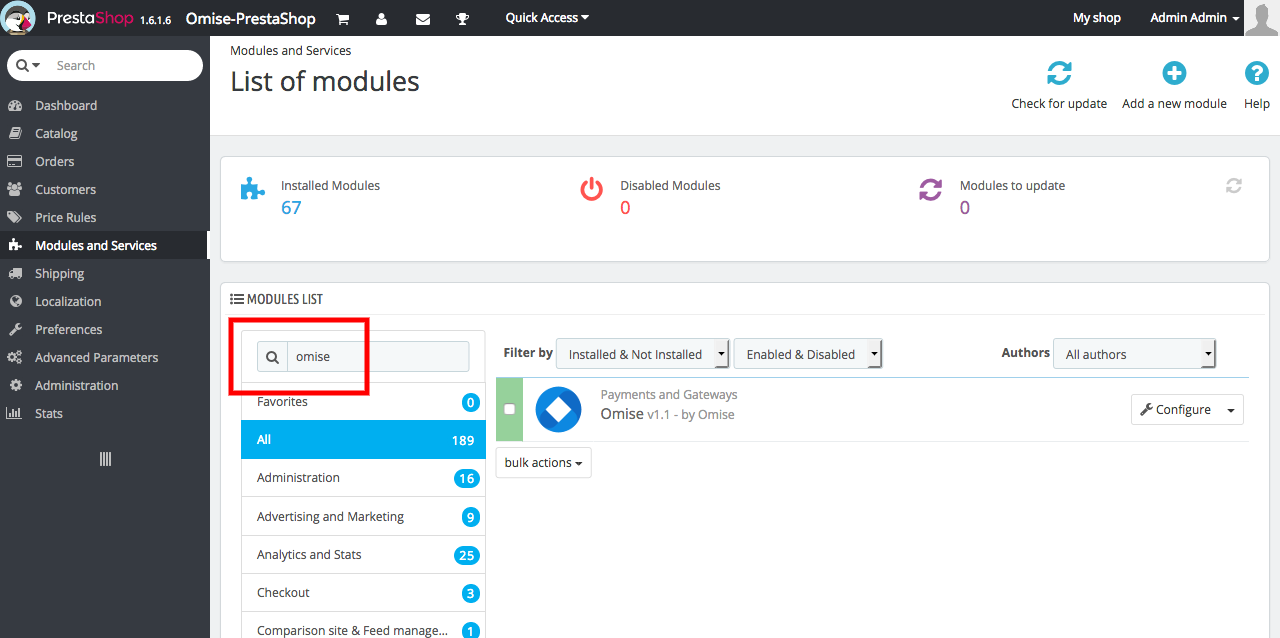
- Click Install
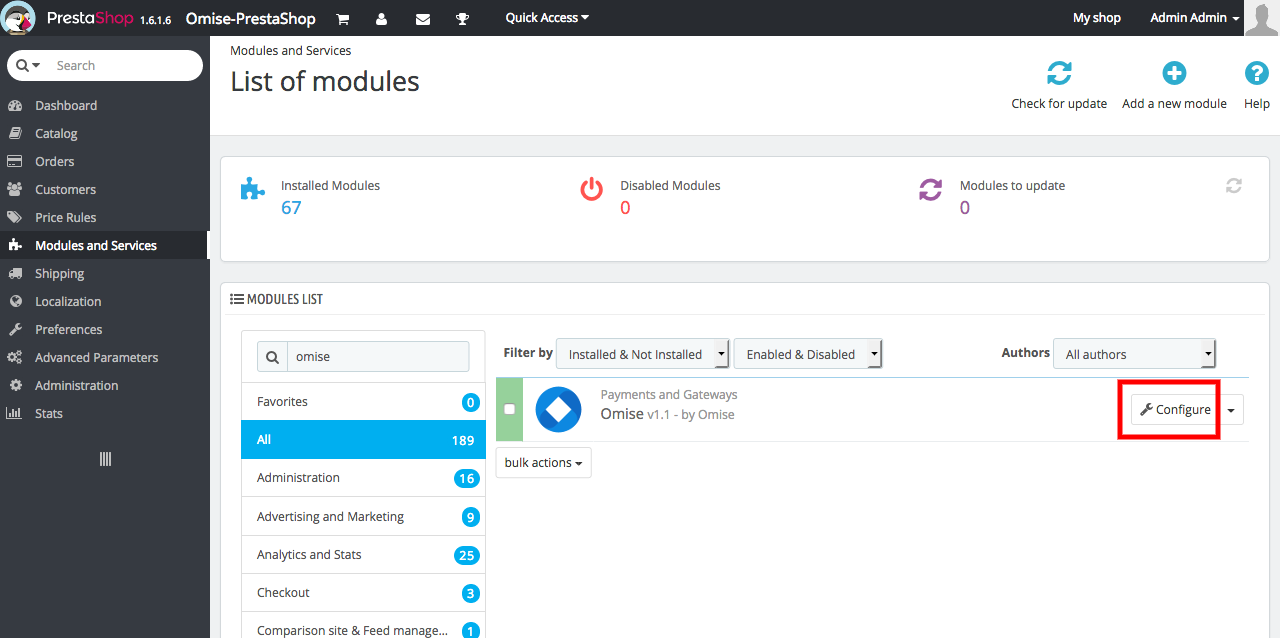
- Click Configure
Manual Installation
# Download from GitHub
wget https://github.com/omise/omise-prestashop/releases/latest/download/omise.zip

# Upload via PrestaShop admin
Modules → Module Manager → Upload a module → Select omise.zip
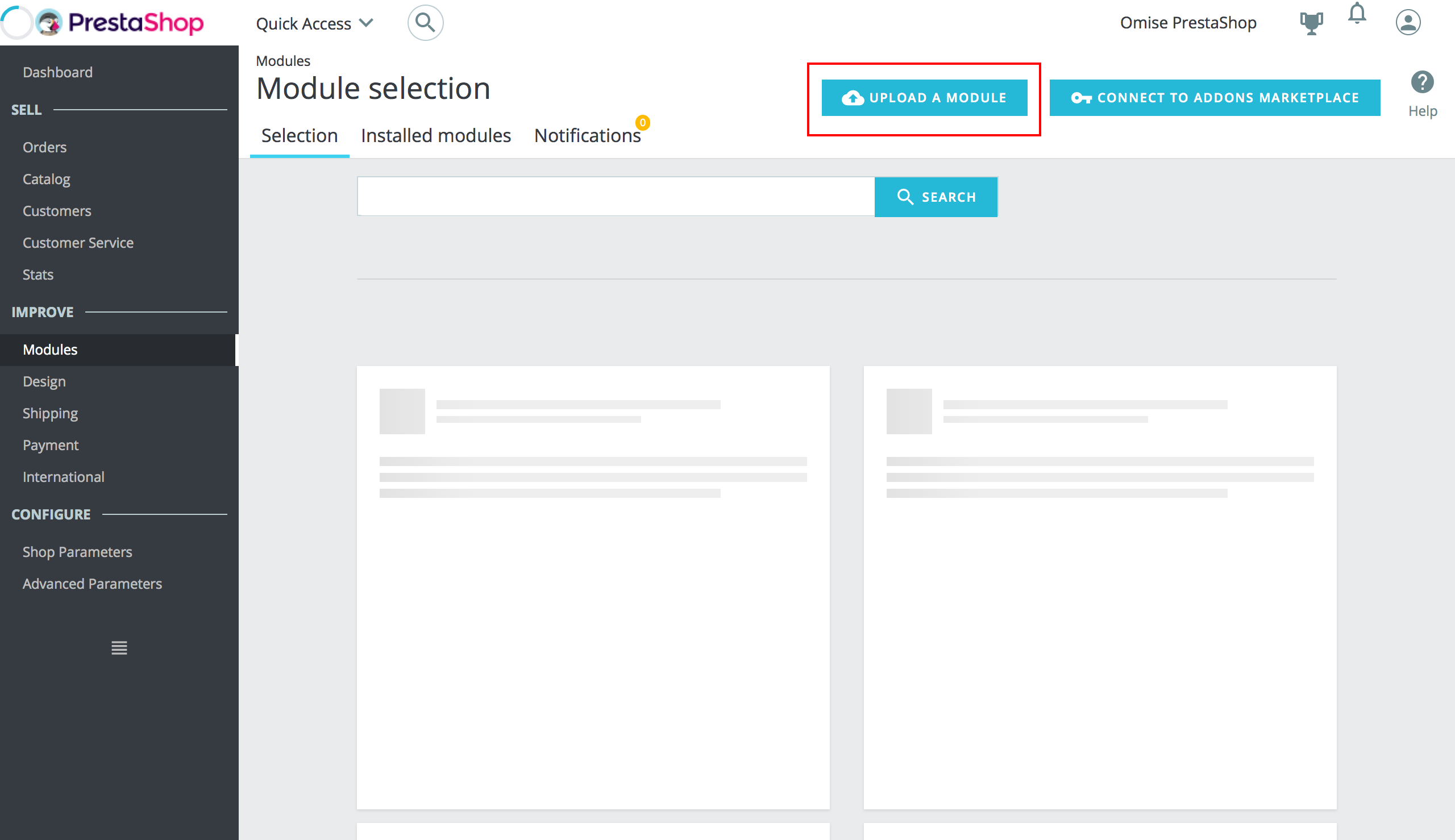
- Navigate to Modules → Module and Services
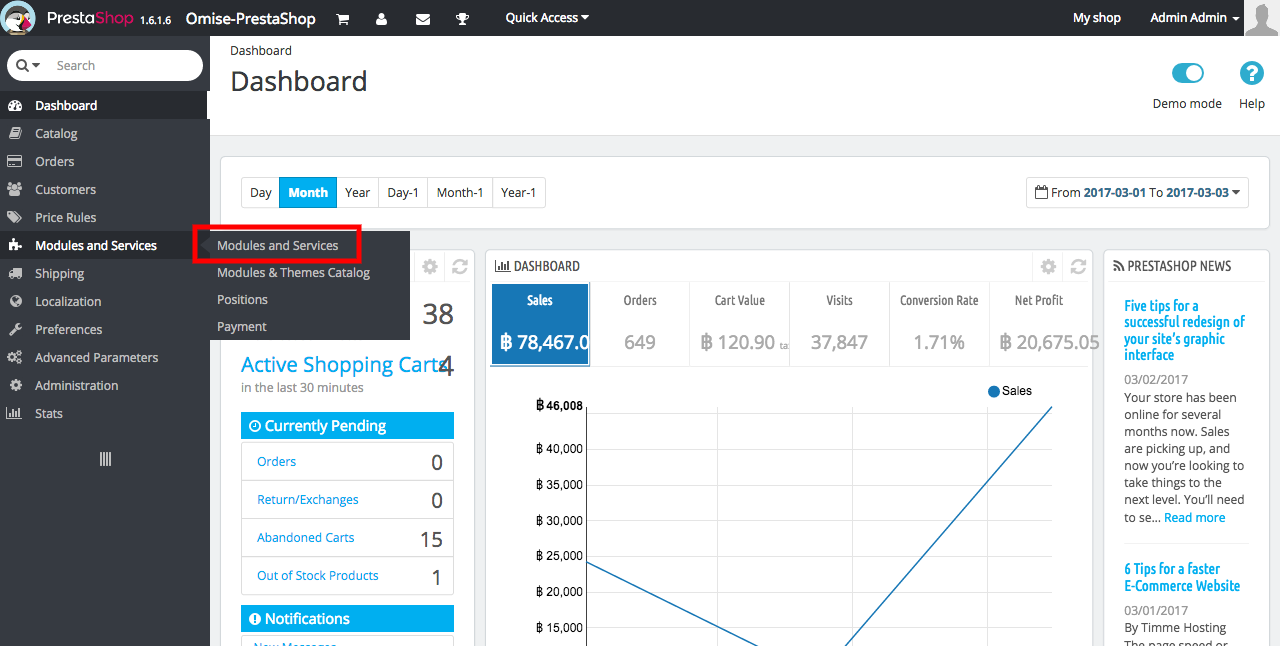
- Click Upload a module button
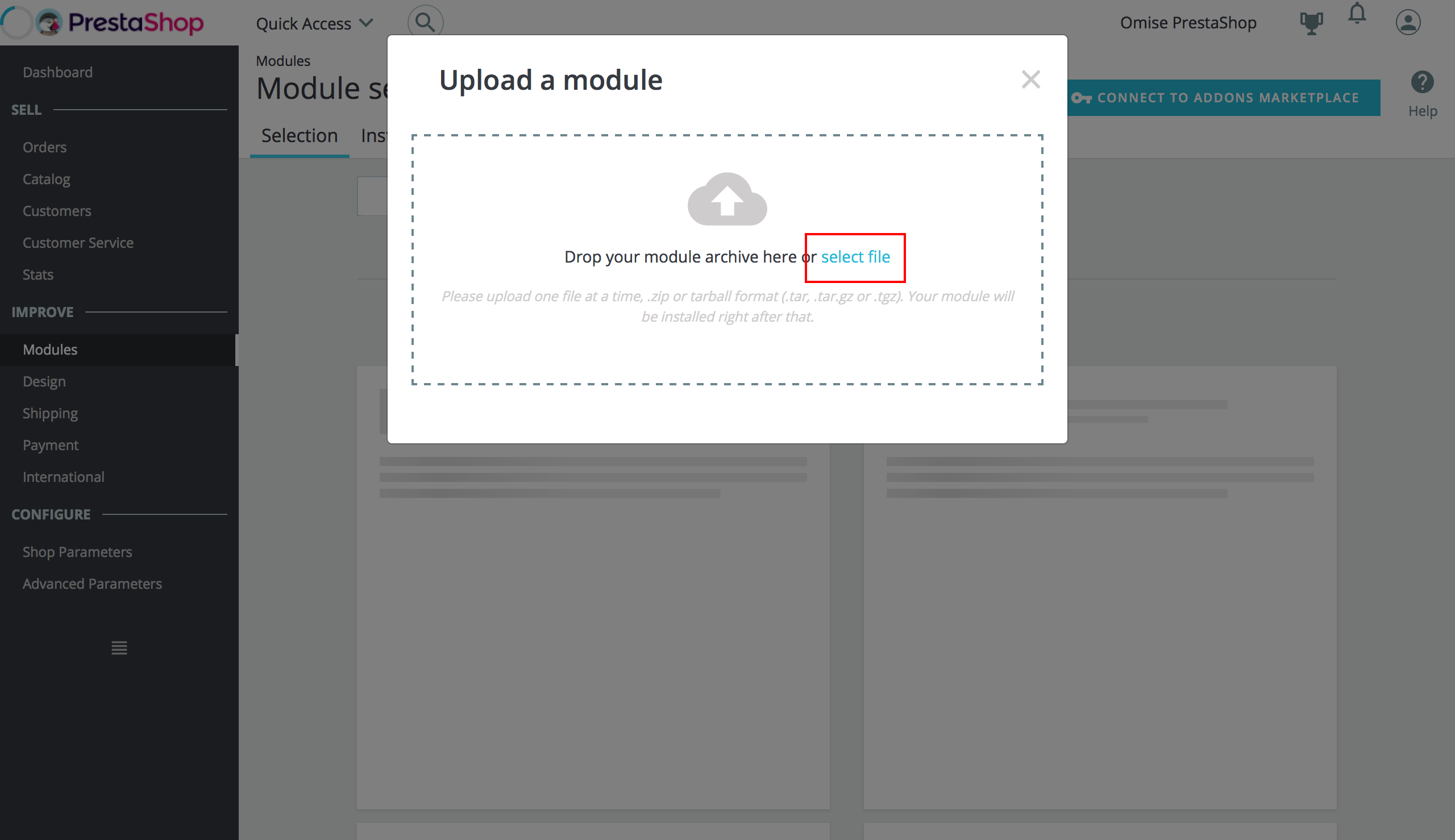
- Select the downloaded ZIP file
Configuration
API Keys Setup
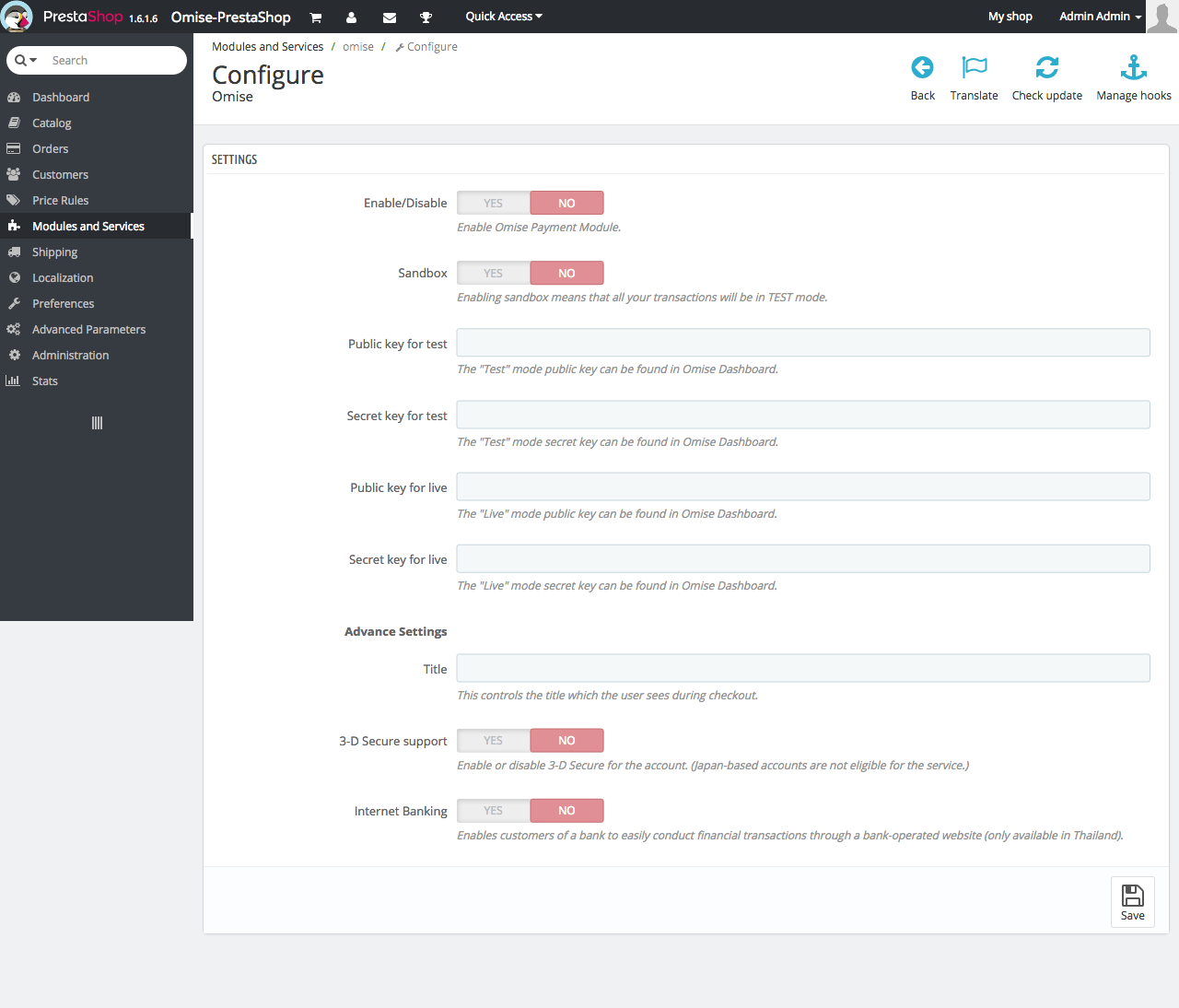
Module Configuration:
- Environment: Sandbox (test) / Production (live)
- Public Key: pkey_test_xxxxx
- Secret Key: skey_test_xxxxx
Enable Payment Methods
Credit Cards:
✓ Enable card payments
✓ 3D Secure: Enabled
✓ Save cards: Optional
Other Methods:
✓ Internet Banking
✓ TrueMoney Wallet
✓ Rabbit LINE Pay
✓ ShopeePay
✓ Installments (min: THB 3,000)
Webhook Configuration
Webhook URL:
https://yourstore.com/module/omise/webhook

Configure in Omise Dashboard:
Settings → Webhooks → Add webhook URL
Testing
Test Card:
Card: 4242 4242 4242 4242
Expiry: 12/28
CVV: 123

Test Flow:
1. Add product to cart
2. Proceed to checkout
3. Select Omise payment
4. Complete test payment
5. Verify order status
Order Management
View Payment Details:
- Orders → Select order → Payment tab
- Omise charge ID displayed
- Transaction details visible
Process Refunds:
- Open order
- Click "Partial refund" or "Standard refund"
- Enter amount
- Select "Refund via Omise"
- Confirm refund
Advanced Configuration
Multi-Store Setup
If you're running multiple PrestaShop stores:
-
Enable Multi-Store Mode
Advanced Parameters → Multistore → Enable Multistore -
Configure Per Store
- Select store from top dropdown
- Configure API keys per store
- Enable different payment methods per region -
Shared Configuration
- Use same webhook URL for all stores
- Webhook handler automatically routes to correct store
Webhook Configuration (Detailed)
Step 1: Get Your Webhook URL
Your webhook URL format:
https://yourstore.com/module/omise/webhook

For multi-store:
https://yourstore.com/en/module/omise/webhook (English store)
https://yourstore.com/th/module/omise/webhook (Thai store)
Step 2: Configure in Omise Dashboard
1. Log in to dashboard.omise.co
2. Navigate to Settings → Webhooks
3. Click "Add Webhook Endpoint"
4. Enter webhook URL
5. Select events:
   ✓ charge.complete
   ✓ charge.update
   ✓ refund.create
   ✓ transfer.update
6. Save endpoint
Step 3: Verify Webhook
1. Make test payment in PrestaShop
2. Check Omise Dashboard → Webhooks → Deliveries
3. Verify status is "200 OK"
4. If failed, check PrestaShop error logs
Payment Method Configuration
Credit Card Settings
Module Configuration → Credit Cards:

✓ Enable credit card payments: Yes
✓ 3D Secure: Enabled (recommended)
✓ Auto capture: Yes (immediate payment)
✓ Save cards: Yes (for returning customers)
✓ Card brands accepted:
  - Visa
  - Mastercard
  - JCB
  - American Express
Installment Settings
Module Configuration → Installments:

✓ Enable installments: Yes
✓ Minimum amount: THB 3,000
✓ Available terms:
  - 3 months
  - 4 months
  - 6 months
  - 10 months
✓ Display on product page: Yes
✓ Show monthly payment amount: Yes
Digital Wallet Settings
Module Configuration → Digital Wallets:

✓ TrueMoney Wallet: Yes
✓ Rabbit LINE Pay: Yes
✓ ShopeePay: Yes
✓ Touch 'n Go (Malaysia): Yes
✓ GrabPay: Yes
Customization
Payment Method Display
Configure Display Order:
Modules → Module Manager → Omise → Configure

Payment Method Sort Order:
1. Credit Cards (position: 1)
2. TrueMoney Wallet (position: 2)
3. Bank Transfer (position: 3)
4. Installments (position: 4)
Customize Payment Method Titles:
// Override in theme's translation file
// themes/yourtheme/modules/omise/translations/en.php

<?php
global $_MODULE;
$_MODULE = array();
$_MODULE['<{omise}prestashop>omise_credit_card'] = 'Pay with Credit Card';
$_MODULE['<{omise}prestashop>omise_truemoney'] = 'Pay with TrueMoney Wallet';
$_MODULE['<{omise}prestashop>omise_installment'] = 'Pay in Installments';
Custom Payment Icons
Upload custom icons:
1. Go to: modules/omise/views/img/
2. Replace icon files:
   - visa.png
   - mastercard.png
   - jcb.png
   - truemoney.png
3. Recommended size: 60x40px (PNG format)
4. Clear cache after upload
Custom CSS Styling
/* themes/yourtheme/assets/css/custom.css */

/* Payment option container */
.omise-payment-option {
    border: 2px solid #FF5722;
    border-radius: 8px;
    padding: 15px;
    margin: 10px 0;
    transition: all 0.3s;
}

.omise-payment-option:hover {
    border-color: #E64A19;
    box-shadow: 0 2px 8px rgba(0,0,0,0.1);
}

/* Payment method icons */
.omise-payment-icons {
    display: flex;
    gap: 10px;
    margin-top: 10px;
}

.omise-payment-icons img {
    height: 30px;
    width: auto;
}

/* Credit card form */
.omise-card-form {
    background: #f5f5f5;
    padding: 20px;
    border-radius: 6px;
    margin-top: 15px;
}

.omise-card-form input {
    width: 100%;
    padding: 10px;
    border: 1px solid #ddd;
    border-radius: 4px;
    margin-bottom: 10px;
}

/* Installment calculator */
.omise-installment-info {
    background: #E3F2FD;
    padding: 15px;
    border-radius: 6px;
    margin-top: 10px;
}

.omise-installment-amount {
    font-size: 18px;
    font-weight: bold;
    color: #1976D2;
}
Custom Fields
Add custom data to charges using PrestaShop hooks:
// modules/omise/override/controllers/front/payment.php

public function postProcess()
{
    $cart = $this->context->cart;
    $customer = new Customer($cart->id_customer);

    // Add custom metadata
    $metadata = array(
        'store_name' => Configuration::get('PS_SHOP_NAME'),
        'customer_id' => $customer->id,
        'customer_email' => $customer->email,
        'cart_id' => $cart->id,
        'language' => $this->context->language->iso_code,
        'currency' => $this->context->currency->iso_code
    );

    // Metadata will be included in charge
    $charge = $this->createCharge($token, $amount, $metadata);
}
Performance Optimization
Enable OpCache
// php.ini configuration
opcache.enable=1
opcache.memory_consumption=128
opcache.max_accelerated_files=10000
CDN for Payment Icons
// modules/omise/omise.php
public function getIconsPath()
{
    // Use CDN for faster loading
    return 'https://cdn.omise.co/assets/payment-methods/';
}
Database Indexing
-- Add indexes for faster order lookups
ALTER TABLE `PREFIX_omise_charge`
  ADD INDEX `idx_charge_id` (`charge_id`),
  ADD INDEX `idx_order_id` (`order_id`),
  ADD INDEX `idx_created_at` (`created_at`);
Troubleshooting
Module Not Appearing
Problem: Omise module not visible in Module Manager
Solutions:
# 1. Check file permissions
chmod 755 modules/omise
chmod 644 modules/omise/*.php

# 2. Clear cache
rm -rf var/cache/*

# 3. Regenerate module list
php bin/console prestashop:module:reset omise

# 4. Re-install if needed
php bin/console prestashop:module:uninstall omise
php bin/console prestashop:module:install omise

# 5. Check error logs
tail -f var/logs/$(date +%Y%m%d)_*.log
Payment Failing
Problem: Payments not completing successfully
Diagnostic Steps:
- Check API Keys
// Test connection
curl https://api.omise.co/account \
  -u skey_test_YOUR_KEY:

// Should return account details
- Verify Environment Setting
Module Configuration:
- Environment: Should match your API keys
  - Sandbox = pkey_test_* / skey_test_*
  - Production = pkey_live_* / skey_live_*
- Check Payment Method Status
Dashboard → Settings → Payment Methods
- Verify payment method is enabled
- Check if region/currency restrictions apply
- Review Logs
# PrestaShop error logs
tail -f var/logs/$(date +%Y%m%d)_*.log | grep omise

# PHP error log
tail -f /var/log/php_errors.log

# Apache/Nginx error log
tail -f /var/log/apache2/error.log  # or
tail -f /var/log/nginx/error.log
Webhook Issues
Problem: Webhooks not being received
Solutions:
- Verify Webhook URL is Accessible
# Test webhook endpoint
curl -X POST https://yourstore.com/module/omise/webhook \
  -H "Content-Type: application/json" \
  -d '{"test": true}'

# Should return 200 OK
- Check Firewall/WAF Rules
- Whitelist Omise webhook IPs
- Disable rate limiting for /module/omise/webhook
- Allow POST requests to webhook URL
- Verify SSL Certificate
# Check SSL configuration
openssl s_client -connect yourstore.com:443

# Verify certificate is valid (not self-signed)
- Check Webhook Logs
Omise Dashboard → Webhooks → Deliveries
- Check delivery status
- View request/response
- Check for 4xx/5xx errors
3D Secure Authentication Failing
Problem: 3DS authentication page not appearing or failing
Solutions:
- Verify return_uri
// Must be publicly accessible HTTPS URL
$return_uri = 'https://yourstore.com/module/omise/return';
- Check Browser Console
F12 → Console tab
- Look for JavaScript errors
- Check for CSP violations
- Verify iframe loading
- Test in Incognito Mode
- Disable browser extensions
- Clear cookies/cache
- Test with different browser
Refund Not Processing
Problem: Refunds initiated in PrestaShop not reflecting in Omise
Solutions:
- Verify Refund Support
Check payment method refund support:
- Credit cards: YES
- TrueMoney: YES (full only, within 30 days)
- Mobile banking: NO
- PromptPay: NO
- Check Refund API Permissions
# Test refund API access
curl https://api.omise.co/charges/chrg_test_123/refunds \
  -u skey_test_YOUR_KEY: \
  -d "amount=10000"
- Review Refund Logs
// Check refund processing
var/logs/omise_refund_*.log
Currency Conversion Issues
Problem: Incorrect amounts or currency mismatch
Solutions:
// Verify currency configuration
Configuration → Currencies → Enable/Disable currencies

// Check Omise currency support
Supported: THB, USD, EUR, GBP, SGD, JPY, MYR

// Ensure cart currency matches payment currency
$cart_currency = new Currency($this->context->cart->id_currency);
$charge_currency = strtolower($cart_currency->iso_code);
Order Status Not Updating
Problem: Order stuck in "Payment pending" after successful payment
Solutions:
- Verify Webhook is Working
# Check recent webhook deliveries
Dashboard → Webhooks → Deliveries (last 24 hours)
- Manually Update Order
-- Find order by cart ID
SELECT * FROM PREFIX_orders WHERE id_cart = CART_ID;

-- Update order status
UPDATE PREFIX_orders
SET current_state = PAID_STATUS_ID
WHERE id_order = ORDER_ID;
- Check Order State Mapping
// modules/omise/config/statuses.php
return array(
    'successful' => _PS_OS_PAYMENT,
    'pending' => _PS_OS_PREPARATION,
    'failed' => _PS_OS_ERROR
);
FAQ
Which PrestaShop versions are supported?
PrestaShop 1.7.x is fully supported. For 1.6.x, use the legacy version.
Can I use multiple currencies?
Yes, configure currencies in PrestaShop settings. Omise supports THB, USD, EUR, GBP, SGD, JPY.
Are refunds automatic?
Yes, refunds processed through PrestaShop admin are automatically sent to Omise.
Can customers save cards?
Yes, enable saved cards in module configuration for returning customers.
Does it work with PrestaShop Cloud?
Yes, the module works with PrestaShop Cloud hosting.
How do I update the module?
Download latest version and re-upload, or update via Module Manager if available.
Next Steps
- OpenCart Plugin - OpenCart integration
- Dashboard Guide - Manage payments
- Testing Guide - Test thoroughly
Resources
Need help? Contact support@omise.co